| Features & Benefits -
here are just a few of MathType's many features |
More Symbols, Templates, and Fonts
- More Fonts: MathType has hundreds more symbols
and templates than Equation Editor. Beside our exclusive Euclid™ math
fonts, you can also make use of the 1000's of math symbols in fonts
already on your computer, as well as math fonts you can download
from the Internet.
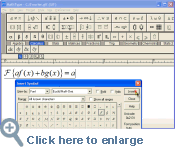
- Find Symbols: MathType's Insert Symbol dialog
allows you to explore the available symbols and insert them with
a click or keystroke.
|
 |
Works with Many Applications
- Many Applications: In addition to Microsoft
Word and PowerPoint,
use MathType to add equations to QuarkXPress and Adobe
InDesign layouts,
Excel spreadsheets, HTML pages, and many more applications
and document types.
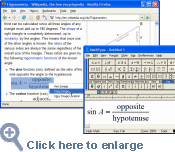
- Works with Wikipedia: Wikipedia, the popular online
encyclopedia, contains 1000's of pages with mathematical equations.
Once you do your research on Wikipedia, you can copy the relevant
equations for use in your own work. You can also use MathType to
author new equations for Wikipedia.
- Many Ways to Work: MathType can add equations
to virtually any application that has an Insert Object command or
into which you can paste or drag a graphic.
|
Use Wikipedia as a source of equations for your work:
|
Two Ways to Create Equations
- Point-and-Click Editing with Automatic Formatting: Equations can
be created quickly by choosing templates from MathType's palettes and
typing into their empty slots. MathType applies mathematical spacing
rules automatically as you type.
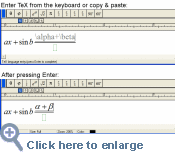
- Type TeX or LaTeX: If you already know the TeX
typesetting language, you can enter equations quickly using MathType's
TeX input mode. TeX editing can be mixed with point-and-click editing
so you get the best of both worlds. You can also paste in equations
from existing TeX documents.
|
Typing TeX can be combined with MathType's traditional point-and-click
editing:
|
Saves Time
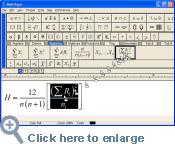
- Save Expressions in the Toolbar: Drag frequently used equations
and expressions to the MathType toolbar so they can be inserted later
with just a click or a keystroke.
- Keyboard Shortcuts: MathType has customizable
keyboard shortcuts for virtually every symbol, template, and command.
|
 |
Easier to Use
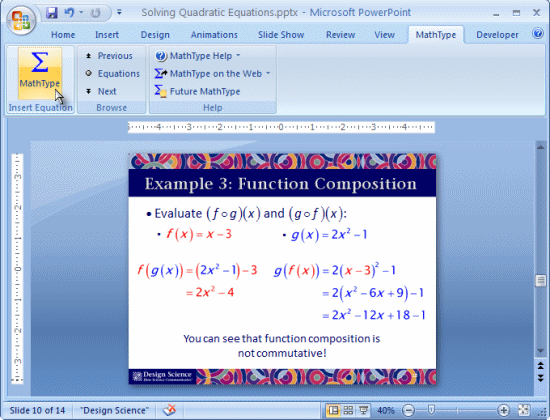
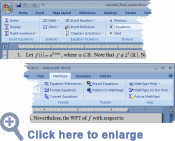
- Microsoft Office 2007 — MathType Ribbon Tab in Word
and PowerPoint: MathType takes full advantage of
Office 2007's new Ribbon User Interface making it easier than ever
to do equation operations in documents and presentations. New equation
numbering and browse features work with all Word equation types.
- Microsoft Office 2003, XP (2002), and 2000 — MathType
Toolbar and Menu in Word and PowerPoint: MathType adds a
toolbar and menu to Microsoft Word and PowerPoint, allowing quick
access to its features and powerful commands to do equation numbering,
produce great-looking math web pages, presentations, and much more.
|
 |
Better Results
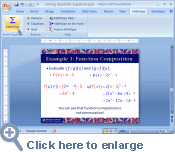
- Colour: Colouring an equation can make it stand out. Use colour
to highlight part of an equation and focus your students' attention
on it. Show what changed in each step of a multi-step procedure.
|
 |